

DocsYour bot
Alerts, Slack and Microsoft Teams
Each bot decides what your team is alerted about. Each person then chooses how alerts reach them, in Settings.
Open your bot and go to Alerts.
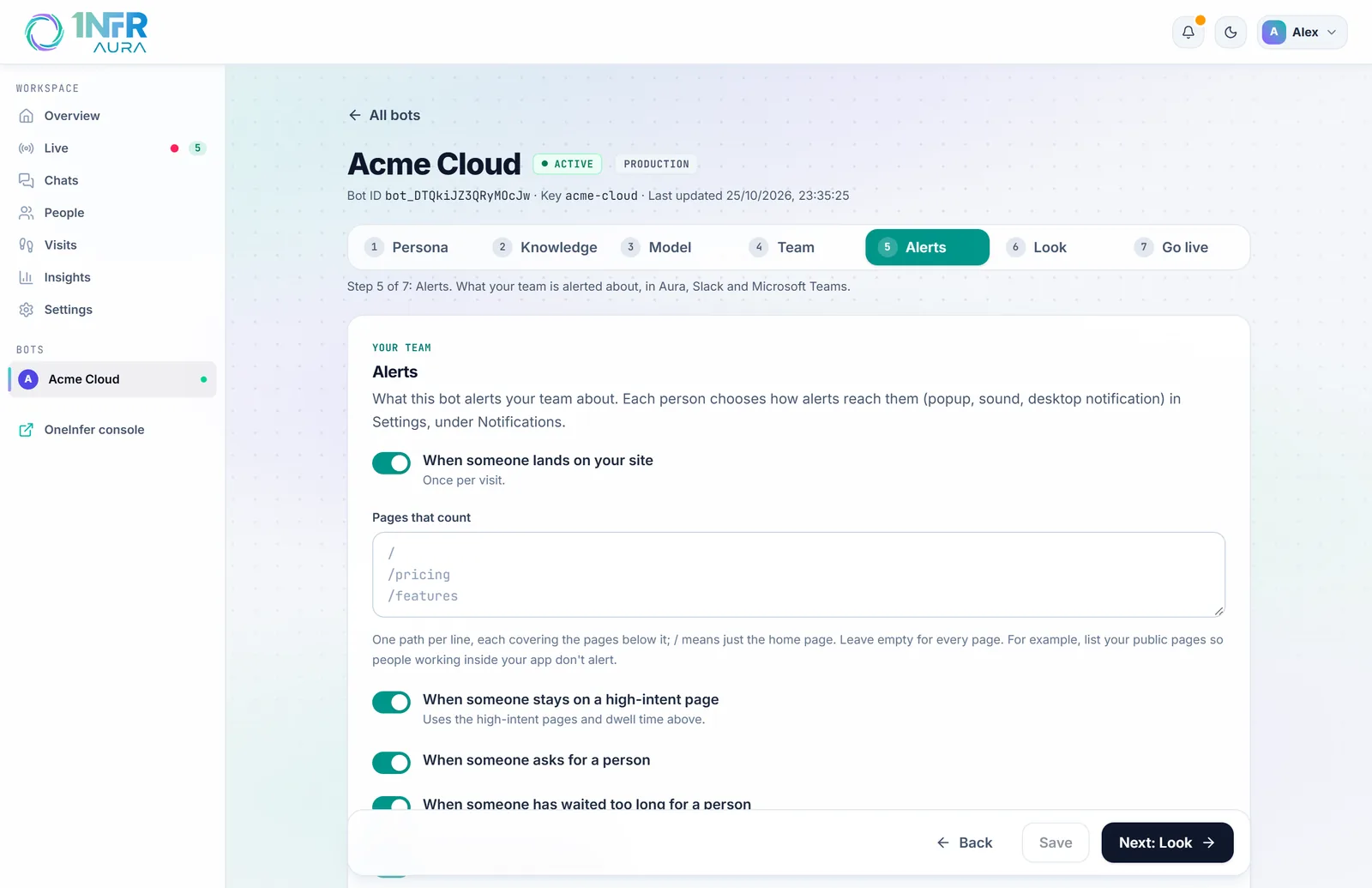
What the bot alerts about
All of these are on by default:
| Alert | When it fires |
|---|---|
| When someone lands on your site | Once per visit. Limit it to Pages that count, such as your public pages, so people working inside your app don't alert. |
| When someone stays on a high-intent page | After the dwell time on one of the high-intent pages set on the Team step. |
| When someone asks for a person | They used a keyword, or said yes to the fallback offer. |
| When someone has waited too long for a person | After the reminder time on the Team step. |
| When the bot can't answer | It sent its fallback message. |
| When a visitor writes in a chat your team has taken | A new message in a chat a person has. |
Alerts appear for everyone in the workspace, in Aura. How they reach each person (a popup, a sound, a desktop notification, or nothing) is set in Notifications.
Send urgent alerts to Slack
"Asked for a person", "waited too long" and "couldn't answer" can also go to a Slack channel, so your team hears about them without Aura open.
- In Slack, create an incoming webhook for the channel (Slack's guide).
- Paste its address, starting
https://hooks.slack.com/services/, into Slack. - Choose Send a test, check the channel, then Save.
Each message has the visitor's name, their question and a link to the Live page.
Send urgent alerts to Microsoft Teams
- In the Teams channel, open Workflows and choose Send webhook alerts to a channel.
- Paste the address it gives into Microsoft Teams. It ends in
logic.azure.comorpowerplatform.com. - Choose Send a test, check the channel, then Save.
Alerts arrive as cards with an Open the Live page button.