

DocsGet started
Add the chat to your website
Aura's chat is one script tag. It works on any site that can take one, including WordPress, Shopify, Webflow and single-page apps built with React or Vue.
Allow your sites
The chat only loads on the sites you list, so a copied snippet can't run on someone else's site.
- Open your bot and go to the Go live step.
- Under Website, in Allowed origins, add each site's address on its own line, such as
https://www.example.com. Use only the scheme and host, with no path. A port is allowed for local testing. - Choose Save.
You can list up to 20 sites. With none listed, the chat won't appear on your live site even with the snippet in place.
Paste the snippet
Under Embed on the same step, choose Copy and paste the snippet just before </body> on every page, usually in your site's layout or footer template:
<script async src="https://aura.oneinfer.ai/widget.js" data-bot-id="bot_…"></script>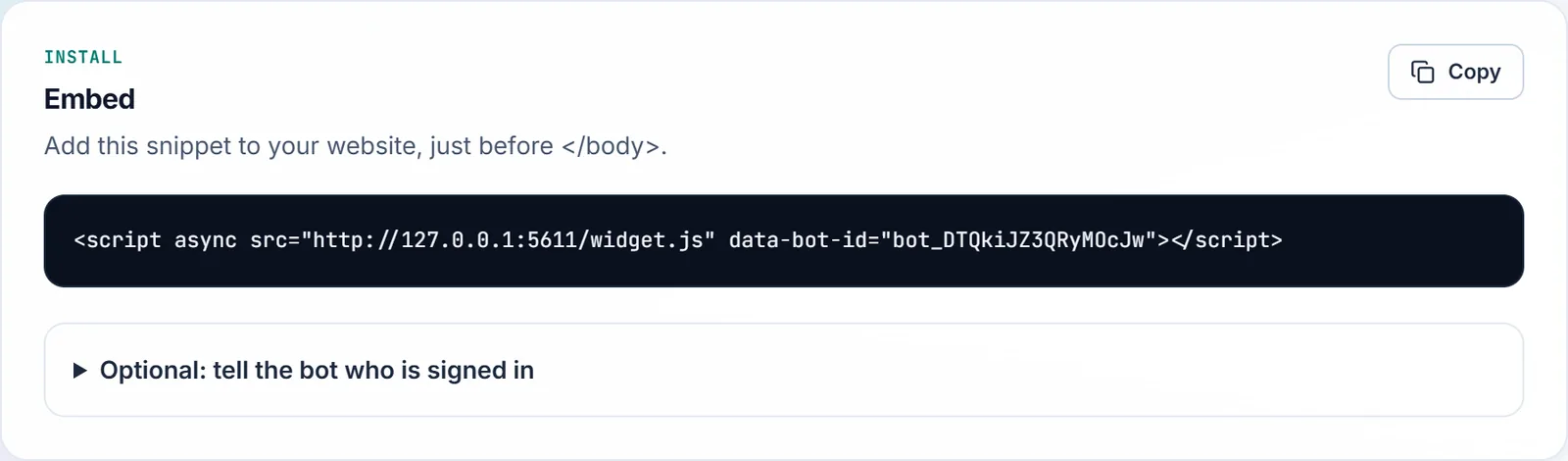
The script loads after your page, so it doesn't slow it down. The chat button appears in the corner you chose in Look.
Single-page apps
Nothing extra is needed. The chat notices when your app changes the address (through history.pushState, replaceState or the back button) and treats each new address as a page view. Hidden pages and the teaser message follow the new page too.
Hide the chat on some pages
In Look, under More options, list paths in Don't show the chat on, one per line. Each covers the pages under it, so /account also hides it on /account/settings.
Most sites leave the chat off sign-in, sign-up and password pages, checkout and payment, legal pages, and any part with its own help, such as an app or dashboard. Visits to hidden pages still show on Live.
Hide the chat on phones removes it, launcher included, on screens up to 640 px wide.
Tell the bot who is signed in
If your site has signed-in users, you can pass their details. The bot uses them to answer (never the email), and your team sees them on Live and in Chats. Anyone can change these values in their own browser, so treat them as a hint, not proof of who someone is.
Add data-visitor-* attributes to the snippet, filled in by your site:
<script async src="https://aura.oneinfer.ai/widget.js" data-bot-id="bot_…"
  data-visitor-id="{{user.id}}"
  data-visitor-name="{{user.name}}"
  data-visitor-email="{{user.email}}"
data-visitor-plan="{{user.plan}}"></script>| Attribute | Who sees it |
|---|---|
data-visitor-name | The bot and your team |
data-visitor-email | Your team only |
data-visitor-id | Your team only. It also joins this person's visits into one journey. |
data-visitor-<anything> | The bot and your team, as a detail: data-visitor-credits-left shows as "credits left" |
For visitors who aren't signed in, leave the values empty and they stay anonymous. Names and ids can be up to 100 characters and emails up to 200; you can add up to 20 details of up to 200 characters each.
In a single-page app, call setVisitor after sign-in and sign-out instead:
window.Aura?.setVisitor({ id: user.id, name: user.name, email: user.email, details: { plan: user.plan } });
window.Aura?.setVisitor(null); // after sign-out
The Optional: tell the bot who is signed in panel under Embed builds the snippet for you, and the guide for your developer has examples for PHP, WordPress, Django and Rails.
Count goals with events
Call window.Aura.track when something worth counting happens, such as a sign-up or a purchase:
window.Aura?.track('signup', { value: 49 });Add a matching event goal in Go live, under Analytics, and Insights shows how many visits reached it and how many chatted first. See Goals and events.
Check it works
- Open your site in a private window.
- The chat button should appear in the corner. Open it and ask a question your pages answer.
- In Aura, open Live: you're listed with the page you're on, and your chat is there.
If the button doesn't appear:
- Check the site's exact address is in Allowed origins (with or without
www, as your site uses it). - Check the bot is switched on, under On or off in Go live.
- Check the page isn't in Don't show the chat on.
- If your site sends a Content-Security-Policy, it must allow
https://aura.oneinfer.aiinscript-src, andhttps://aura.oneinfer.ai,https://api.oneinfer.aiandwss://api.oneinfer.aiinconnect-src.