

DocsInsights
Page reports and heatmaps
Every page on your site has a report: how it's used beside the rest of your site, the pages around it, its speed and errors, and a heatmap drawn on the page itself.
Open Insights, then Pages, and choose a page.
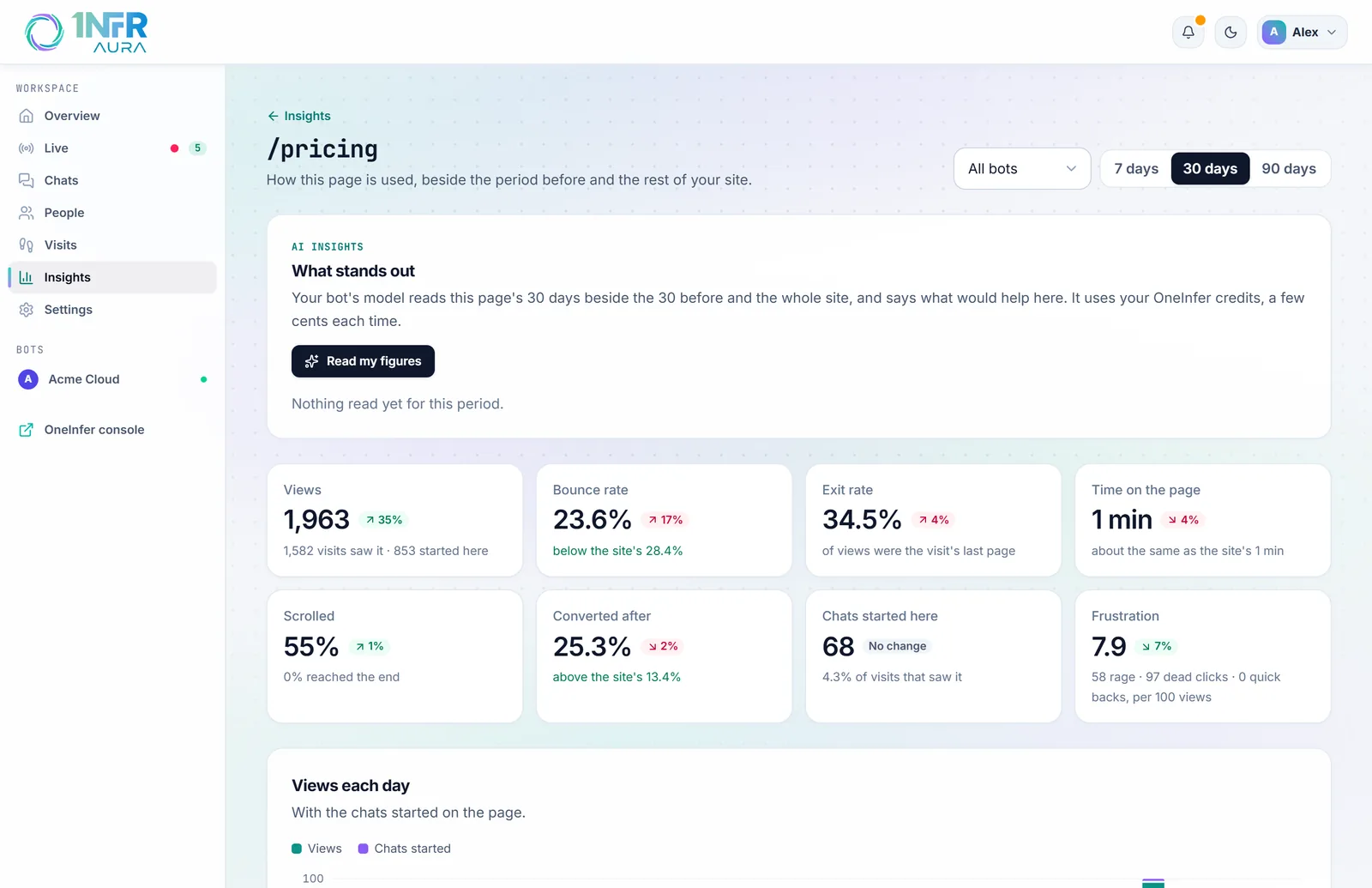
The page report
| Figure | What it measures |
|---|---|
| Views | How many times the page was seen, by how many visits, and how many visits started here. |
| Bounce rate | Of the visits that started here, those that left within 10 seconds. Compared with your site. |
| Exit rate | Views that were the visit's last page. |
| Time on the page | Active time, compared with your site. |
| Scrolled | How far down people got, and how many reached the end. |
| Converted after | Visits that reached a goal after seeing this page, compared with your site. |
| Chats started here | Chats begun on this page. |
| Frustration | Rage clicks, dead clicks and quick backs, per 100 views. |
Then:
- Views each day, with the chats started on the page;
- Where they came from, The page before and The page after;
- the Heatmap;
- Page speed and Errors on this page;
- Questions the bot couldn't answer here, with Add to knowledge.
Read my figures at the top has your bot's model read this page beside the whole site and say what would help. See AI insights.
Heatmaps
A heatmap shows where people click on a page, drawn on your page as it is now, and how far down they scroll.
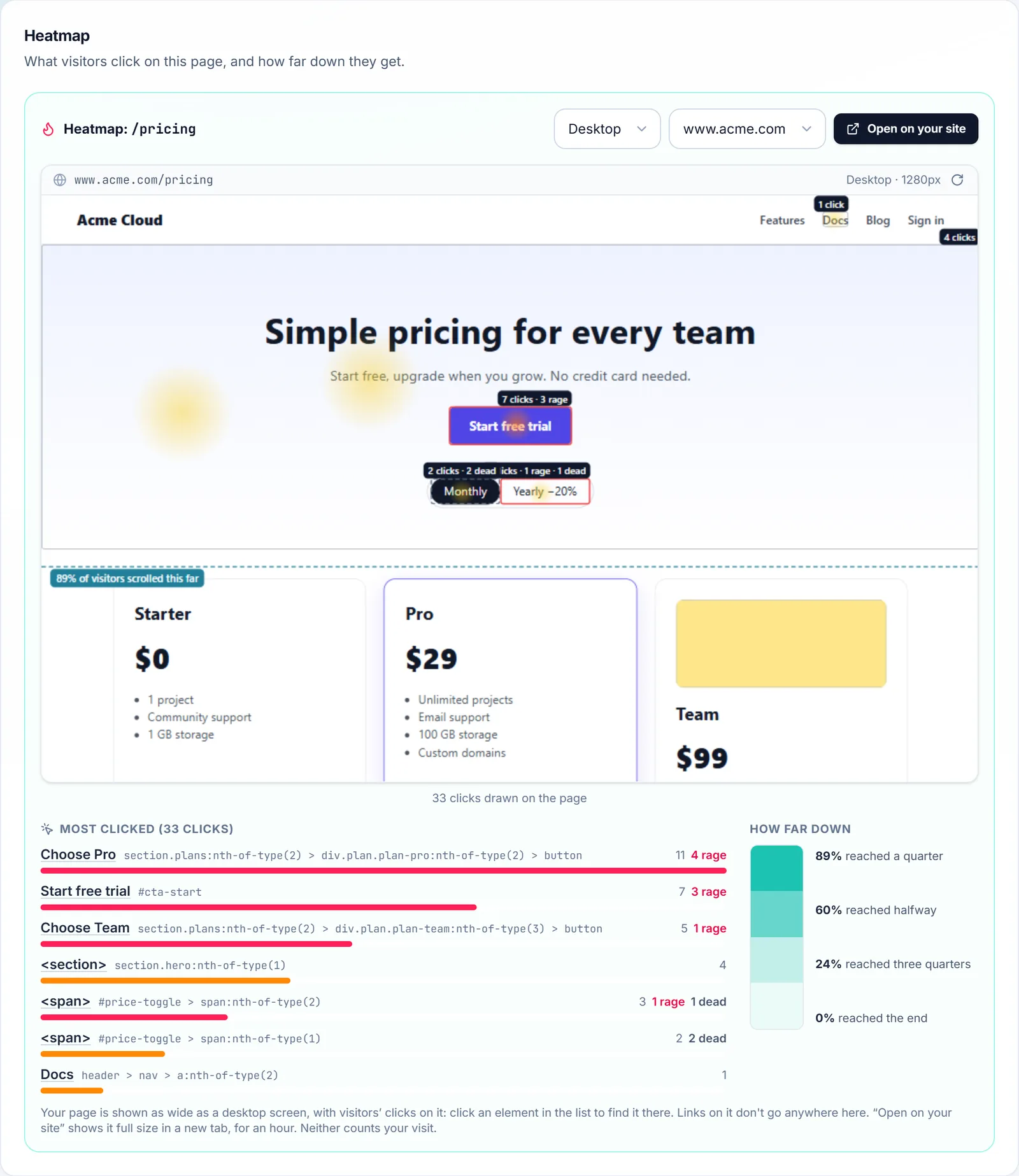
- Choose Desktop, Tablet or Phone: clicks are grouped by the width of the visitor's window.
- Most clicked lists the elements people clicked, with their rage and dead clicks. Click one to find it on the page.
- How far down shows how many visitors reached a quarter, halfway, three quarters and the end of the page.
- Open on your site opens your page in a new tab with the heatmap drawn over it, full size. The link works for an hour, and neither view counts as a visit.
From a visitor's journey, Their heatmap shows only that person's clicks.
If your page doesn't show in the panel
Aura shows your page inside the panel in a frame. If it says "Your page didn't show its heatmap here", your site doesn't allow other sites to frame it, or Aura's chat isn't on that page.
To allow it, your site's response headers must:
- Not send
X-Frame-Options: DENYorSAMEORIGIN. That header can't name another site, so remove it. - Allow Aura in
Content-Security-Policy, inframe-ancestors:
Content-Security-Policy: frame-ancestors 'self' https://aura.oneinfer.aiOpen on your site works either way, as it opens your page in its own tab.
What heatmaps need
- Measure how your pages are used on, in your bot's Go live step under Analytics. It's on by default.
- The page's site in Allowed origins, and Aura's chat on the page.
- Heatmaps cover the period chosen in Insights, up to 90 days. Pages with ids in their address can't be opened, as they're many pages.
Aura records which element was clicked and where on it, never what anyone types. Clicks inside the chat itself aren't recorded.
Page speed
Page speed shows how fast your pages are for real visitors, as their browsers measured it. Like Google, it judges a page by its slowest quarter of visits.
| Measure | What it is | Good | Poor |
|---|---|---|---|
| Loading (LCP) | When the main content appears | 2.5 s or less | Over 4 s |
| Responding (INP) | How fast the page reacts to a click or tap | 200 ms or less | Over 500 ms |
| Stability (CLS) | How much the page jumps around as it loads | 0.1 or less | Over 0.25 |
Each measure shows Good, Needs work or Poor, and the share of visits that were good.
Browser errors
Browser errors lists the JavaScript errors visitors' browsers hit on your pages, most frequent first, with the file, line and pages. They're worth passing to whoever builds your site.