

DocsGet started
Get started with Aura
You can have a bot answering questions about your business in about ten minutes. You need a OneInfer account and a few dollars of OneInfer credits.
Sign in
Aura uses your OneInfer account: there's no separate sign-up and no API key to copy.
- Go to aura.oneinfer.ai and choose Sign in, or Create your first bot if you're new to OneInfer.
- Sign in with your OneInfer email and password, Google or Microsoft.
- Aura opens on the Overview: your workspace, who is on your sites now, the last 7 days and your bots.
If you belong to a OneInfer organisation, the switcher at the top of the side rail moves between your own workspace and the organisation's. Everyone in an organisation shares its bots, chats and figures. See Team and roles.
Create a bot
Make one bot for each website you run.
- On the Overview, under Bots, choose New bot (or Create your first bot).
- Give it a name, such as "Website assistant", and choose Create.
- The bot editor opens on its first step, Persona.
A bot costs $1 a month while it's on, taken from your OneInfer balance when you create it. The first time, Aura also sets up model access: it creates an API key in your OneInfer account so the bot can answer. You don't need to do anything for that. See Pricing and billing.
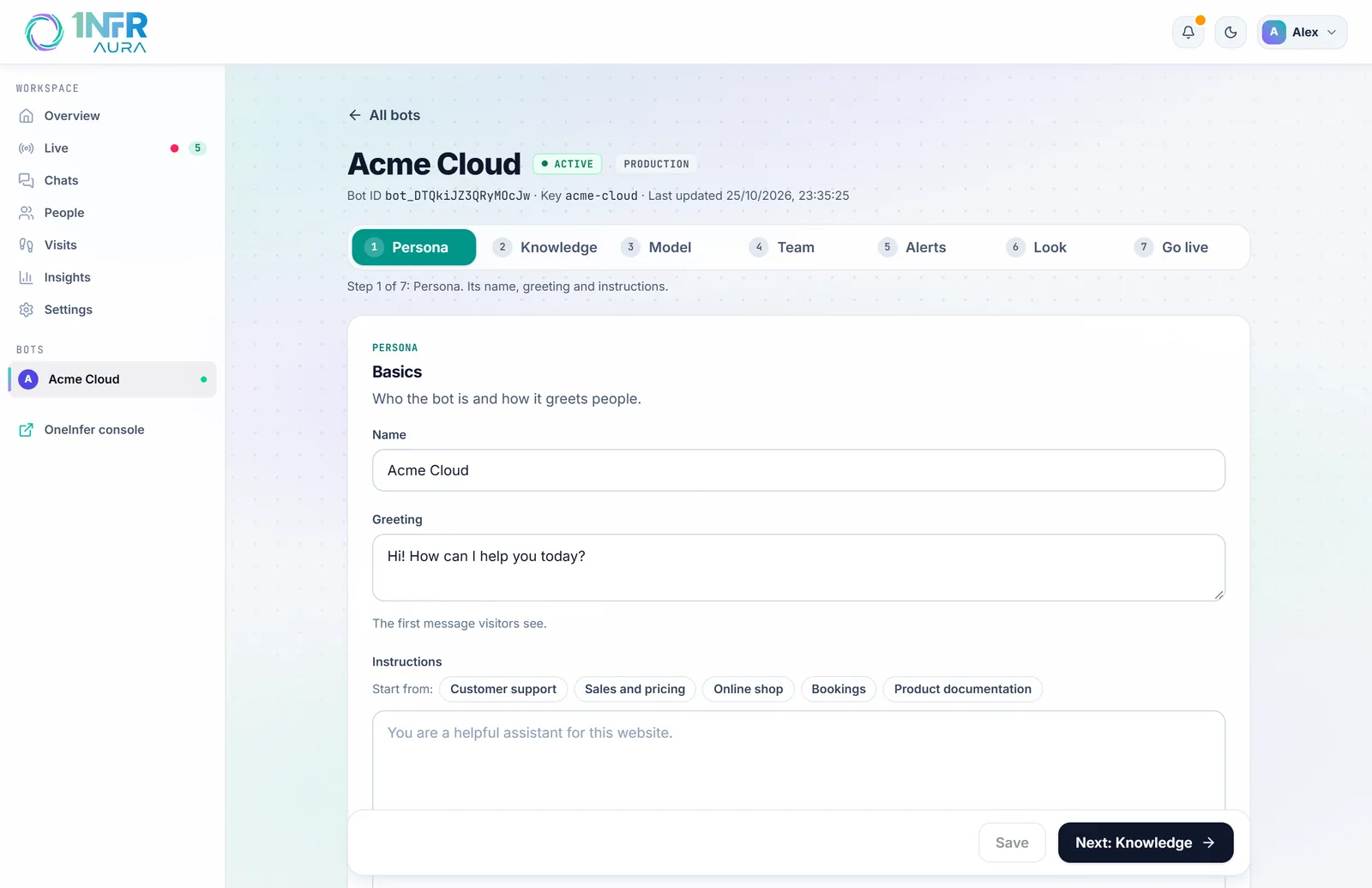
Walk through the seven steps
The editor has seven steps. You can open any of them at any time, and each one saves with Save or Save and continue at the bottom.
| Step | What you set there |
|---|---|
| Persona | The bot's name, its greeting and its instructions. Start from a template such as "Customer support" or "Sales and pricing". |
| Knowledge | The pages, files and text it answers from, and what it says when it can't answer. |
| Model | The AI model that writes its answers and what 1,000 chats a month would cost on each, plus voice. |
| Team | When it brings in a person, your opening hours, and how chats end. |
| Alerts | What your team is alerted about, in Aura, Slack and Microsoft Teams. |
| Look | Its icon, colours and chat panel. |
| Go live | The sites it runs on, the snippet for your site, analytics and goals, and your privacy text. |
For a first bot, three things matter most:
- Persona: pick a template under Start from, then replace every part in [brackets] with your own details.
- Knowledge: add your main pages (pricing, features, FAQ) under Website. Then use Try a question to see what the bot would read before answering.
- Go live: add your website's address under Allowed origins. The chat only loads on the sites listed there.
Add it to your site
Copy the snippet from Go live, under Embed, and paste it into your site just before </body>:
<script async src="https://aura.oneinfer.ai/widget.js" data-bot-id="bot_…"></script>The chat button appears on the next page load. Add the chat to your site covers single-page apps, hiding the chat on some pages and telling the bot who is signed in.
What happens next
Once the chat is on your site: