

DocsWorking with visitors
Notifications and sounds
Each bot decides what your team is alerted about. Each person decides how alerts reach them, in their own browser, under Settings and Notifications.
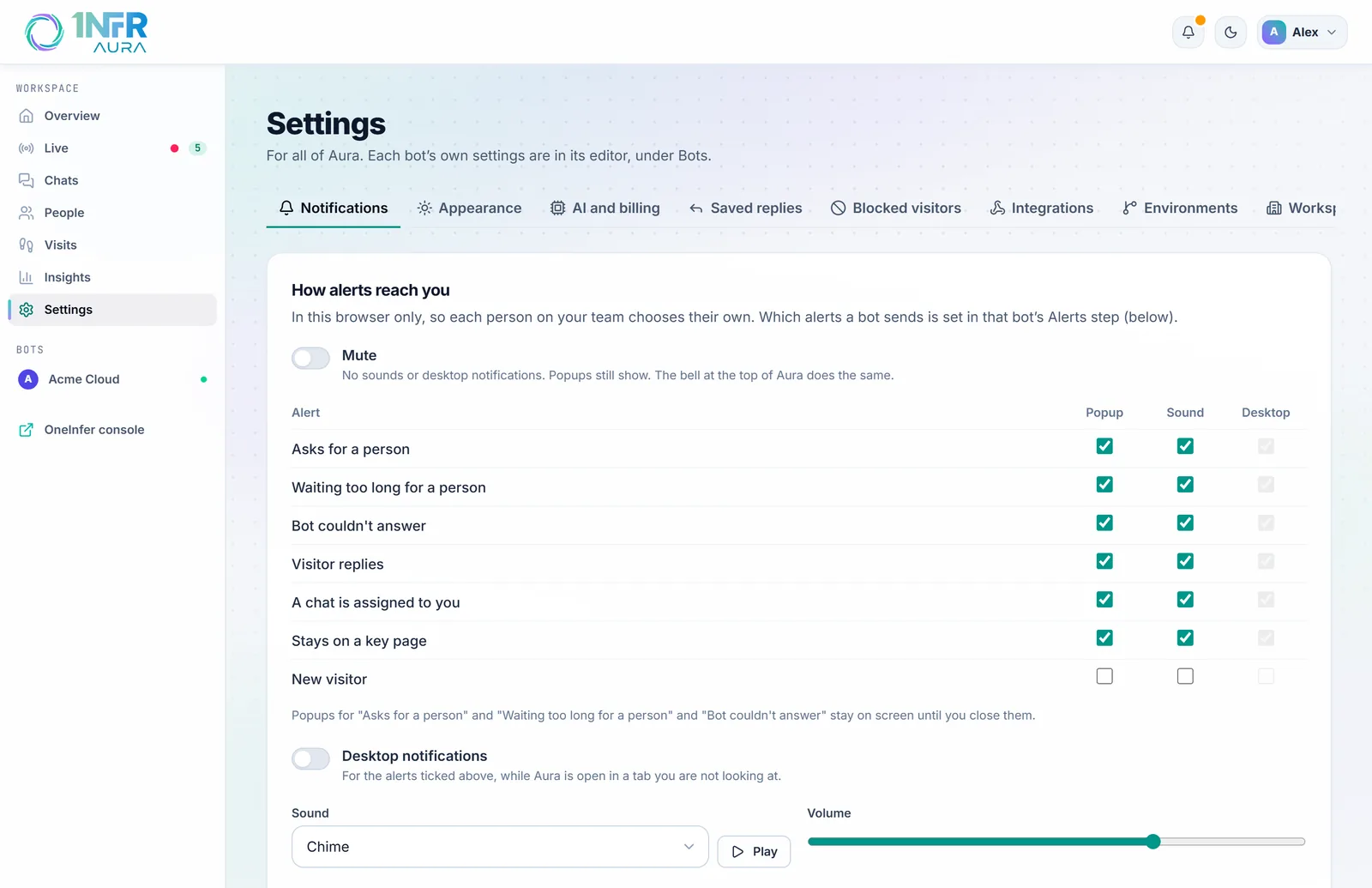
The kinds of alert
| Alert | Stays on screen | On by default |
|---|---|---|
| Asks for a person | Yes | Popup, sound, desktop |
| Waiting too long for a person | Yes | Popup, sound, desktop |
| Bot couldn't answer | Yes | Popup, sound, desktop |
| Visitor replies | No | Popup, sound, desktop |
| A chat is assigned to you | No | Popup, sound, desktop |
| Stays on a key page | No | Popup, sound, desktop |
| New visitor | No | Off |
Popups appear at the top right, four at most. The ones that stay on screen have an amber border and wait until you close them; the others close after eight seconds, unless you're pointing at them. Click a popup to open that visitor or chat. "A chat is assigned to you" opens the chat in Chats.
What each bot sends at all is set in its Alerts step.
Choose how they reach you
Under How alerts reach you, tick Popup, Sound and Desktop for each kind. These choices are kept in this browser only, so each person on your team sets their own.
- Desktop notifications must be on for the Desktop ticks to work. They show only while Aura is open in a tab you aren't looking at. Your browser asks for permission the first time.
- Sound: Chime, Bell, Pop or Knock, with Play to hear it, and a volume.
- Mute silences sounds and desktop notifications; popups still show. The bell at the top of Aura does the same.
Browsers keep a page silent until you've clicked or typed on it. If sounds are blocked, the bell shows a dot: click anywhere in Aura and they come back.
Quieten one bot
With two or more bots, Each bot, in this browser sets each one to All alerts, Urgent only or None, with its own sound if you like. Urgent means asking for a person, waiting too long, and the bot not knowing the answer. "A chat is assigned to you" always shows.
Away from Aura
Urgent alerts can also go to a Slack or Microsoft Teams channel, set per bot in its Alerts step. When nobody from your team is online and a visitor asks for a person, the bot's Team email gets an email too.