

DocsTeam and settings
Settings
Settings holds what applies across Aura rather than to one bot. Each bot's own settings are in its editor.
The sections are Notifications, Appearance, AI and billing, Saved replies, Blocked visitors, Integrations, Environments and Workspace. Notifications, Integrations and Environments have their own pages.
Saved replies
Saved replies are answers your team writes once and puts into chats. The whole workspace shares them.
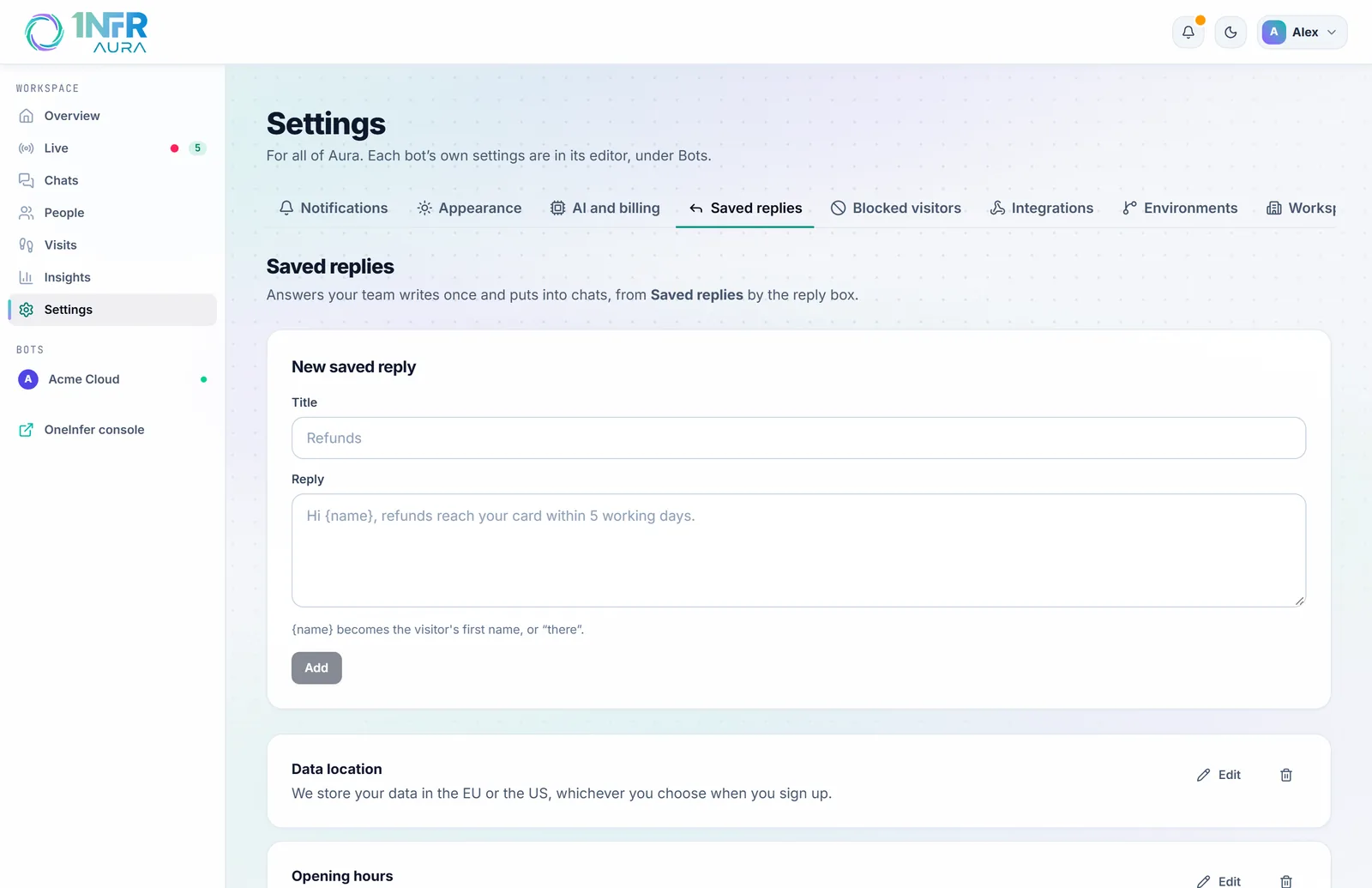
- Under New saved reply, give it a Title, such as "Refunds".
- Write the Reply.
{name}becomes the visitor's first name, or "there" for someone unnamed. - Choose Add.
In a chat, Saved replies by the reply box lists them to search and insert. Save as a reply saves what you've just written. A workspace can have up to 200.
Blocked visitors
Everyone your team blocked from chatting, on all your bots, with when and why. Unblock lets them chat again. You block someone from their panel on Live or in Chats.
Blocks match the visitor's network as well as the visitor, without storing their IP address, so people on the same network are blocked too. That's why blocks normally end after 1, 7 or 30 days.
AI and billing
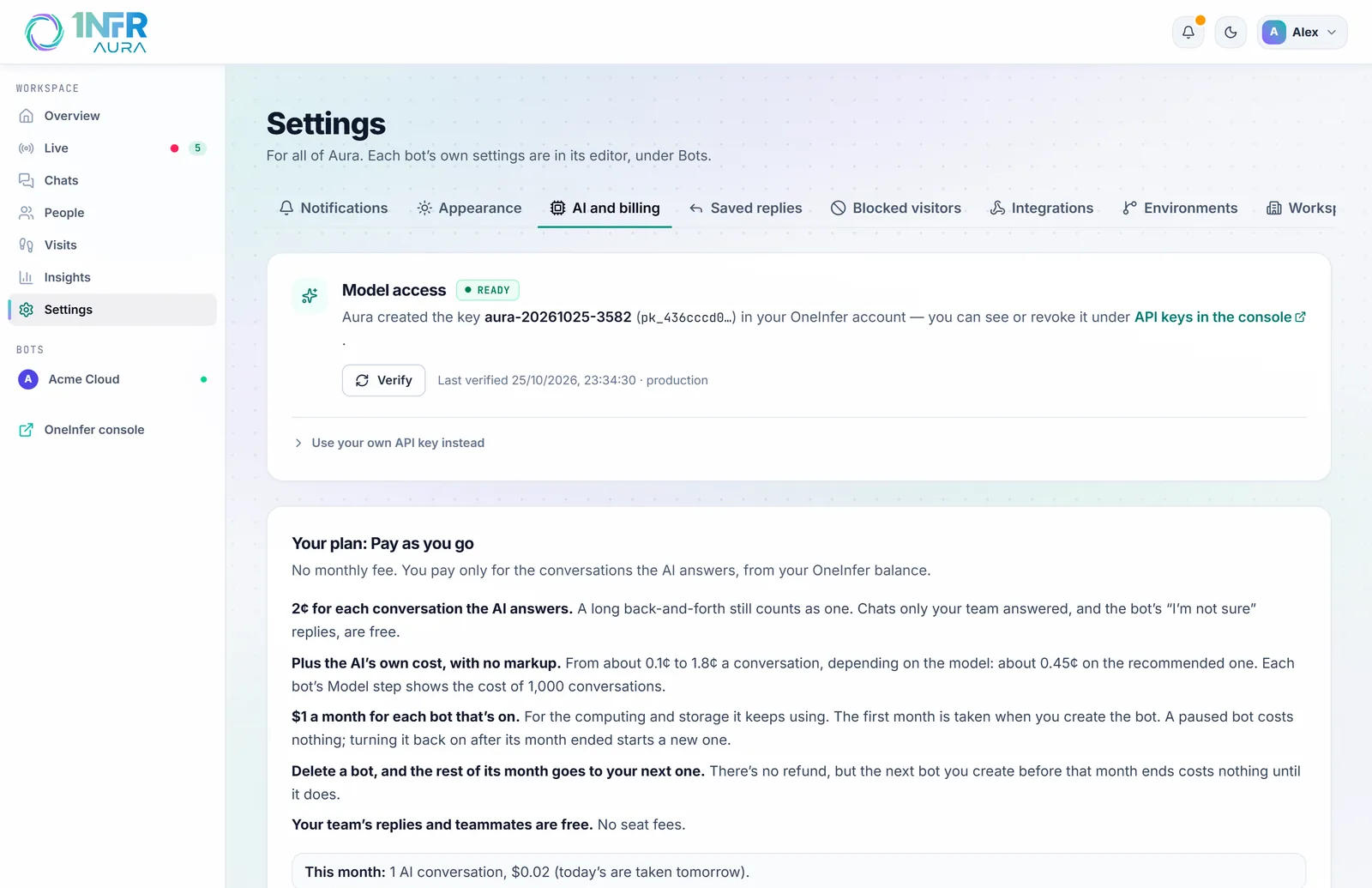
Model access
Aura answers through your OneInfer account. When you create your first bot, Aura creates an API key for itself in your account, so you have nothing to copy. Model access shows its state: Ready, Not set up or Needs attention.
- Verify checks the key still works.
- Set it up again makes a new key, if the old one was revoked.
- Use your own API key instead lets you give Aura a key you created under API keys in the OneInfer console. It must belong to the same account.
- Disconnect stops your bots answering until access is set up again.
Owners and admins change model access.
Your plan
What you've used this month, what you pay for, and any unpaid fees. See Pricing and billing.
Workspace
Rename your own workspace here. An organisation's workspace takes the organisation's name, managed in the OneInfer console.
Your account shows who you're signed in as, with a link to the OneInfer console for your password, sign-in methods, credits and API keys, and Sign out.
Appearance
Light or dark, for Aura in this browser. The chat on your site has its own theme, in each bot's Look step.