

DocsWorking with visitors
See who is on your site with Live
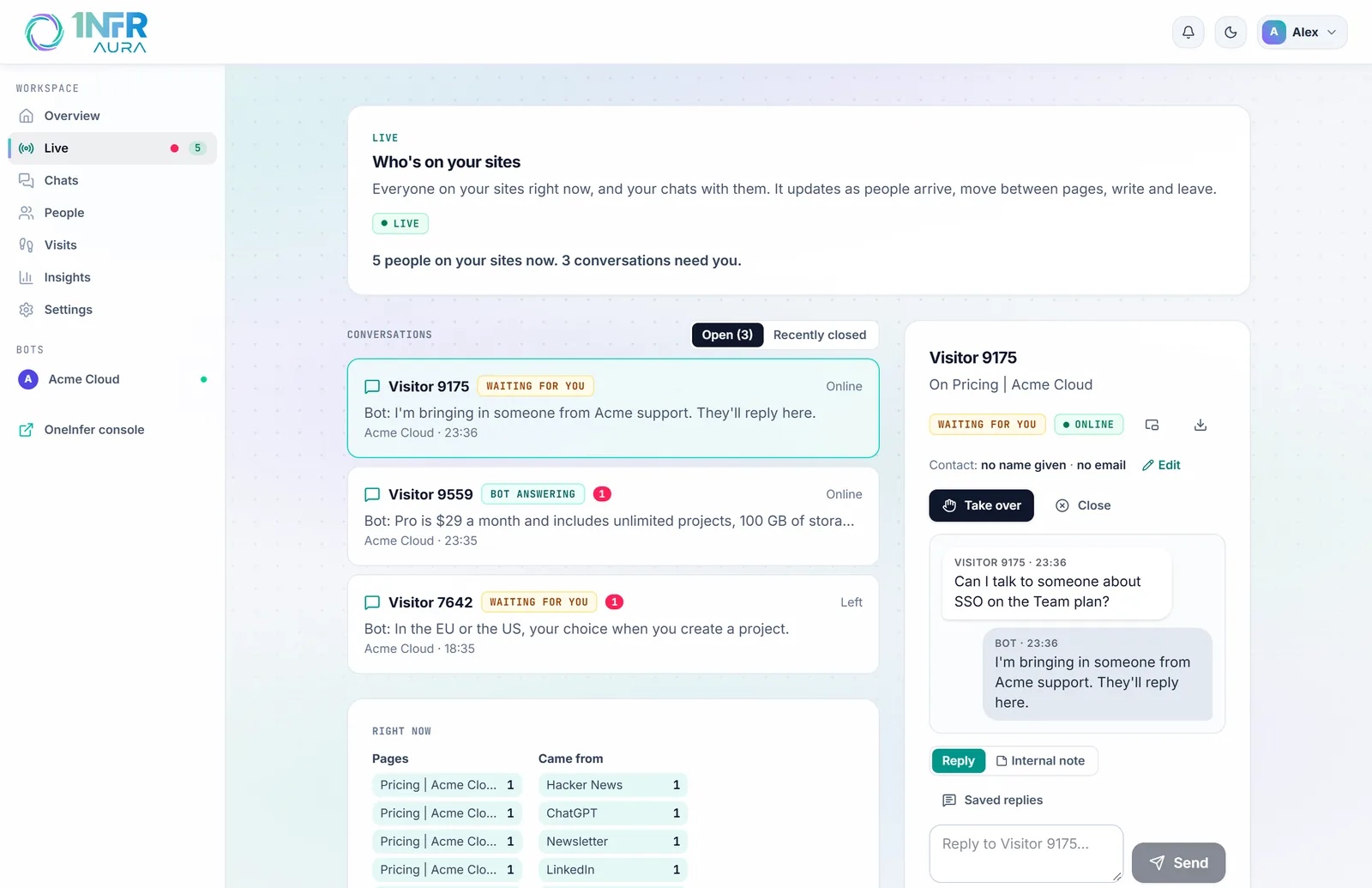
Live is everyone on your sites right now and your chats with them. It updates as people arrive, move between pages, write and leave.
Open Live from the side rail. A red dot on it means a conversation needs you; the green count is how many people are online.
Conversations
The left column lists Open conversations, with the newest activity first: the visitor's name, the chat's state, any unread messages, and whether they're still on the site. Recently closed shows the last ten, with a link to every chat in Chats.
| State | What it means |
|---|---|
| Bot answering | The bot has the chat. |
| Waiting for you | The visitor asked for a person and nobody has replied yet. |
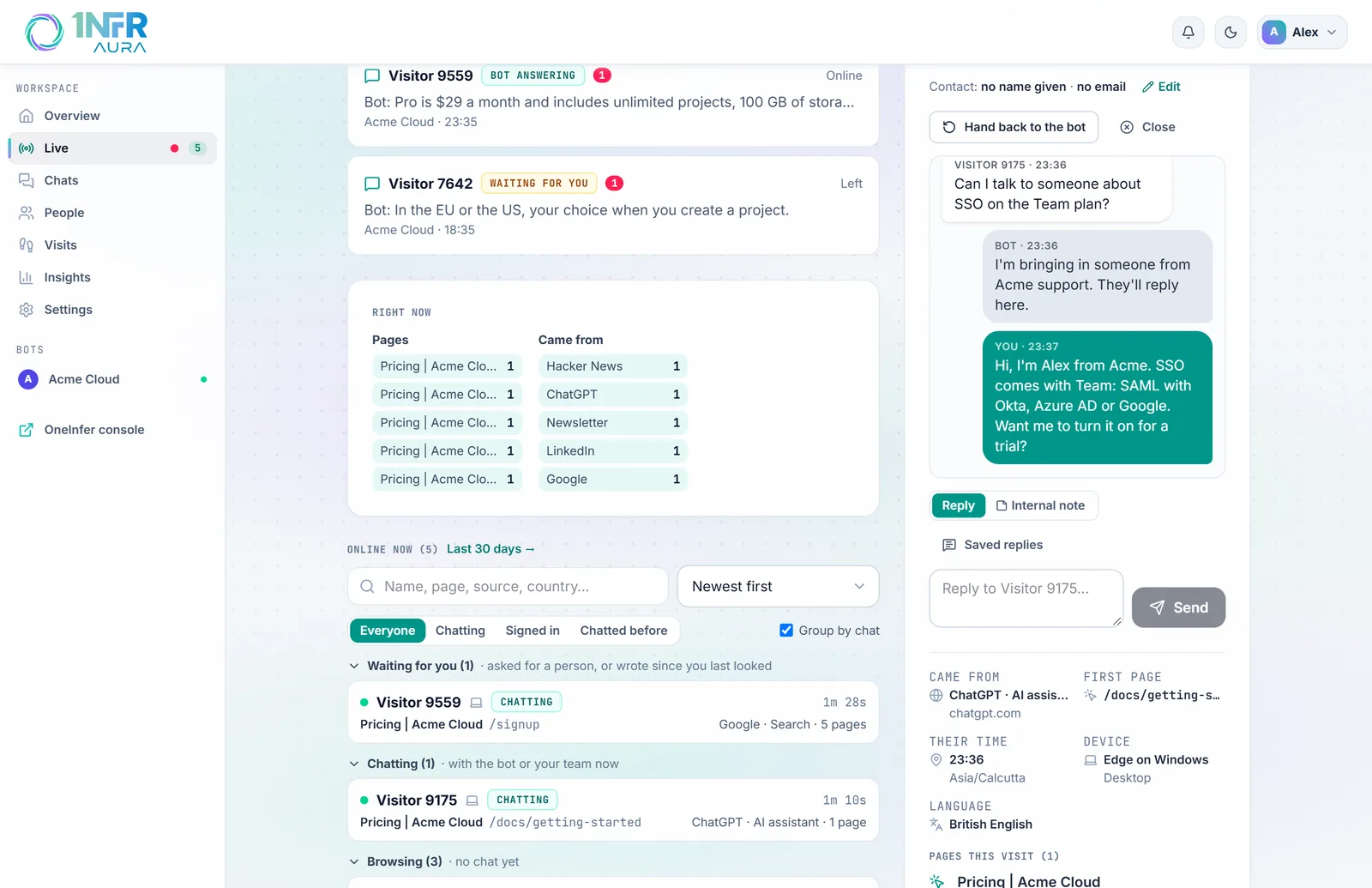
| You are chatting | You took the chat over. In a shared workspace, it reads "Name is chatting" for a teammate. |
| Closed | The chat ended. |
People online
Online now lists everyone on your sites, grouped:
- Waiting for you: asked for a person, or wrote since you last looked.
- Chatting: with the bot or your team now.
- Chatted before: their earlier chats are in their panel.
- Browsing: no chat yet.
Each row shows their name ("Visitor 4821" unless your site or a chat named them), their country, device, how long they've been on the site, the page they're on, where they came from and how many pages they've seen.
With four or more people online, Right now shows a map and the top pages, sources and countries; click any of them to narrow the list. You can also search by name, page, source or country, filter by bot, sort, and show crawlers.
A visitor's panel
Select a visitor or a conversation to open their panel:
- the chat, with the reply box;
- their contact details, which you can Edit;
- what your website said about them (marked "not verified");
- their earlier chats;
- where they came from, their first page, their rough location and local time, device and language;
- every page of this visit, with the time on each.
Open in a window pops the chat out into its own small window, so you can keep it beside your work. Download the transcript saves the chat as a text file, without notes.
Take over, hand back, close
- Take over: you have the chat and the bot stops answering. Replying does the same. In a shared workspace, everyone sees who has it.
- Hand back to the bot: the bot answers again. The chat stays assigned to you as a ticket.
- Close: the chat ends and the visitor can rate it.
Reply and add notes
Switch between Reply and Internal note above the box. Notes are for your team: the visitor and the bot never see them. Press Enter to send and Shift+Enter for a new line.
- Saved replies inserts an answer your team wrote once;
{name}becomes the visitor's first name. Save as a reply saves what you've written. See Settings. - When the visitor has left an email and left the site, your replies are also emailed to them.
Message someone who hasn't chatted
Select anyone online and write to them. They see your message in a bubble by the chat button and can reply there.
Block someone
Block this visitor stops someone chatting on all your bots, for 1, 7 or 30 days or until you unblock them. People on the same network are blocked too, which is why blocks normally end on their own. Blocks are listed in Settings, under Blocked visitors.
Delete someone's data
When someone asks you to delete their data, open their panel and choose Delete this visitor's data. Their visits, chats and visitor record are removed for good. Only owners and admins can do this. See Privacy.